

Paying happens in two parts: you transfer the money the way that suits you, then you tell us from the invoice page and attach your receipt. We review the request and confirm it, and the invoice updates itself.
Step one: open the invoice and scroll to the payment card
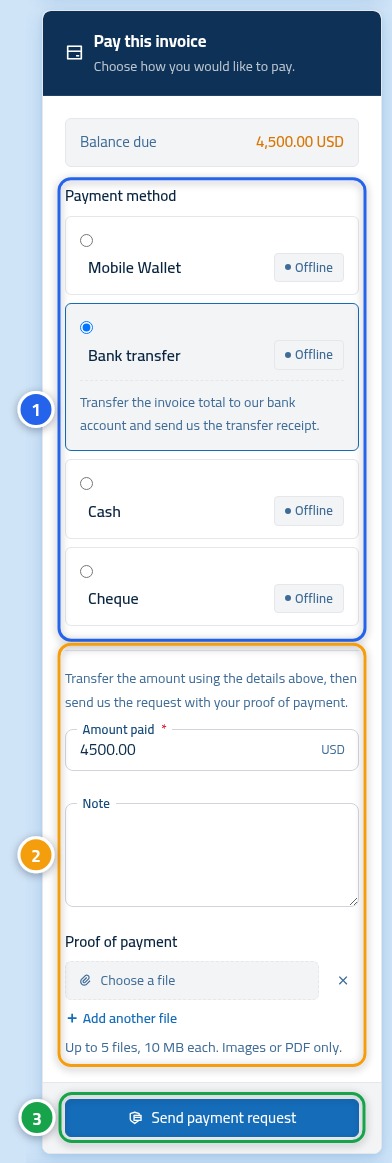
From My invoices, click the unpaid invoice, then scroll down until you reach the Payment card. It reads top to bottom: payment methods (1), then the request form (2), then the send button (3).
Step two: choose the payment method
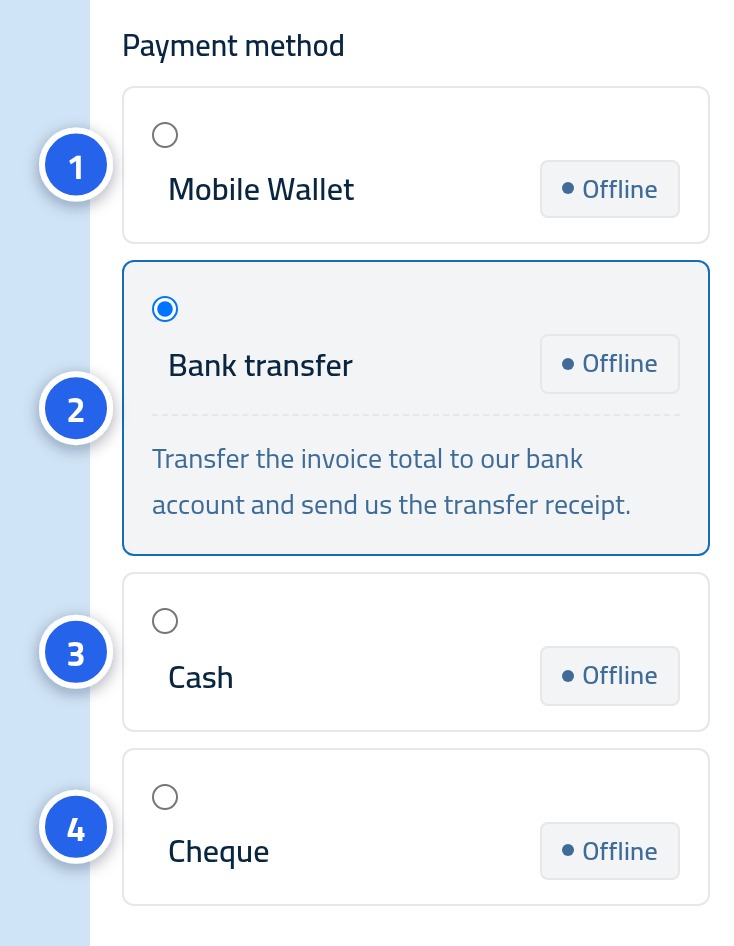
Choose the method you actually used to send the money, not the one you intend to use. As soon as you select it, that method's own instructions appear directly underneath, with the account or wallet number to transfer to.
Step three: enter the amount and attach the receipt
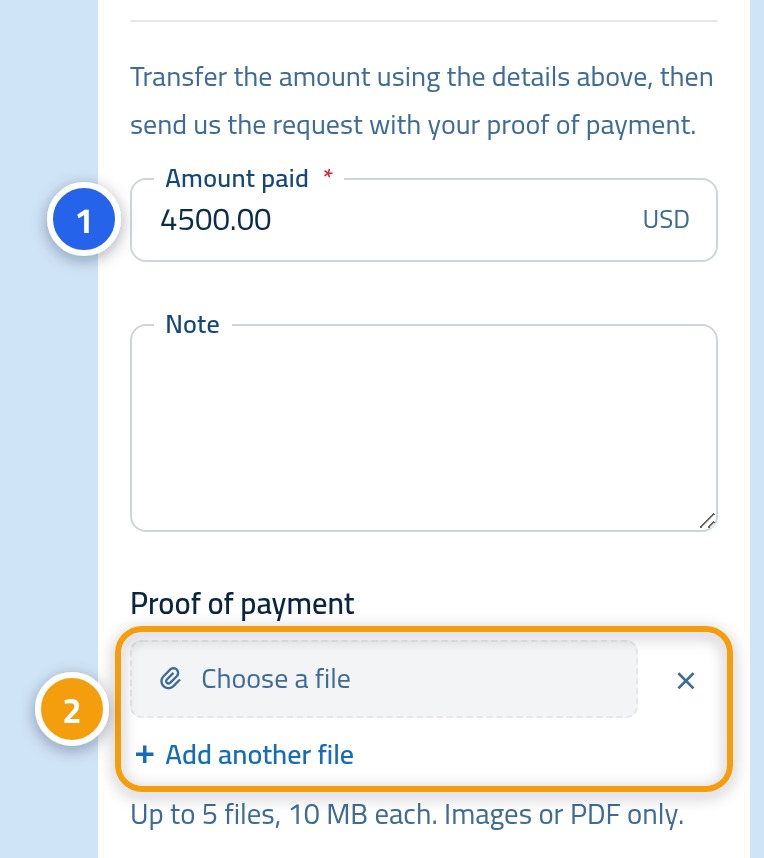
The amount (1) is filled in for you with the outstanding balance, so change it only if you sent a different figure. Then use Attachments (2) to add a photo of the receipt or a screenshot from your banking app. You can attach more than one file.
Step four: send the request
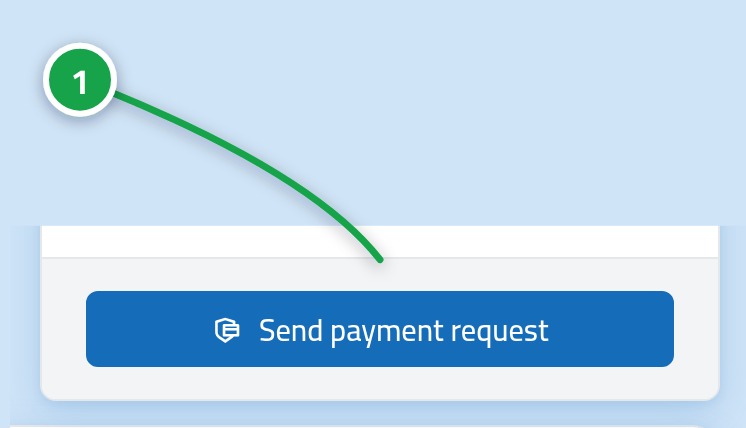
Click Send payment request at the bottom of the card. A confirmation appears on screen and the request reaches our team the same moment.
Step five: follow it through to confirmation
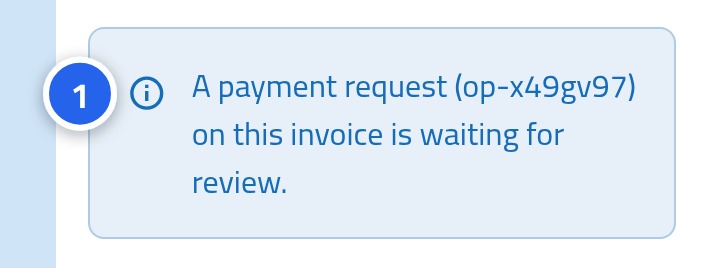
Once sent, the payment card shows a note carrying your request number. That note stays on screen for as long as the request is under review, and it is how you know your request actually arrived.
Worth knowing
- Transfer the money first, then send the request. A request with no transfer behind it cannot be confirmed.
- Make sure the receipt is legible and shows both the amount and the date.
- You may pay part of an invoice. The balance updates and the remainder stays due.
- Review is done by a person during working hours, so do not worry if the status has not changed within the minute.
Next: the payment methods
Which methods appear inside an invoice is set by our team, and each one has its own instructions. The next article explains each method and when to choose it.