

Want to change your account password? This guide walks you through it step by step, from opening the site to saving the new password. Follow the five steps in order, no technical experience needed.
Step one: open the sign-in page
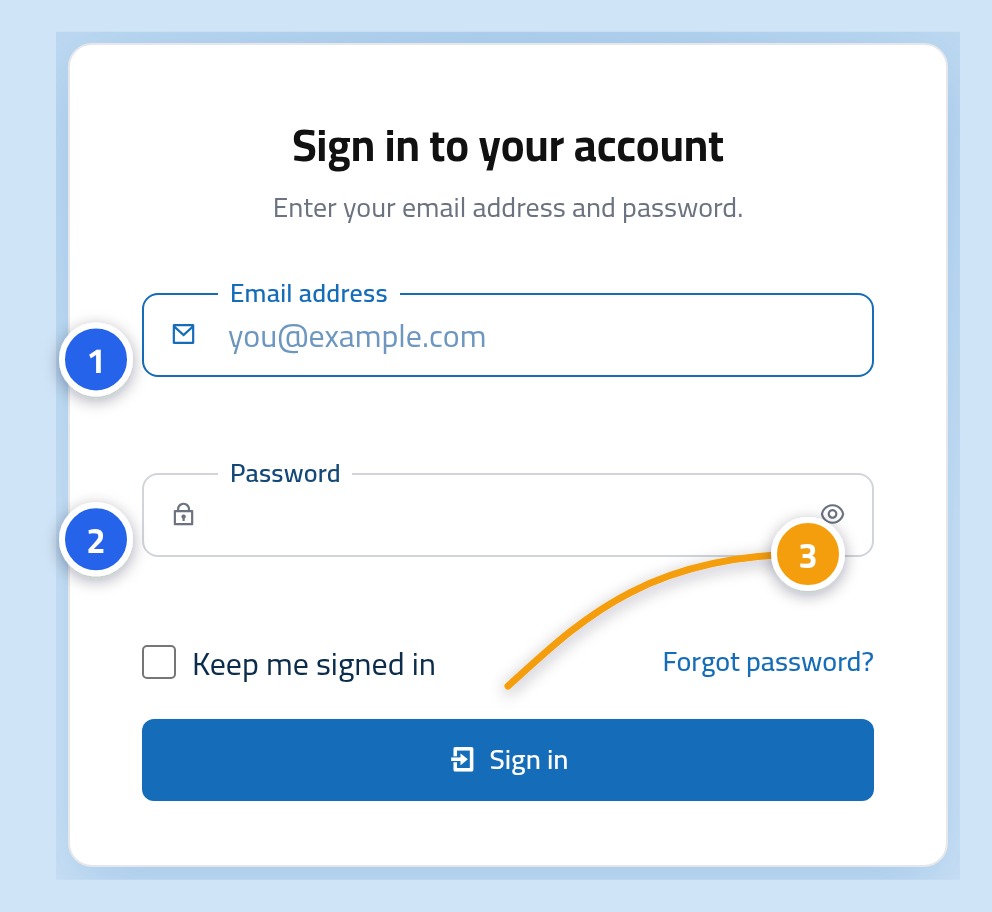
Open the control panel sign-in page. Type your e-mail address in the first box and the password you use today in the second, then press the "Sign in" button.
Step two: click your name at the top of the page
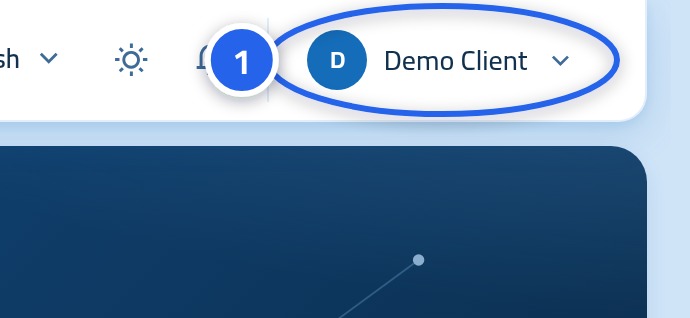
Once you are in, your name and picture appear in the top corner of the page. Click them once.
Step three: choose "Security settings"
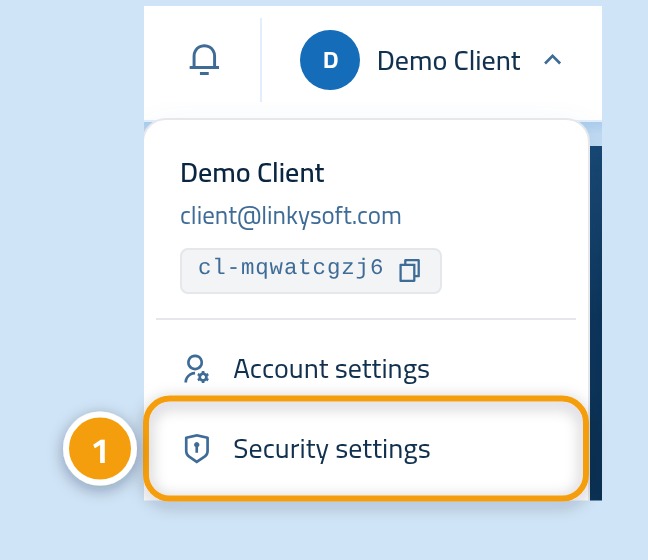
A small menu opens under your name. Click Security settings.
Step four: check that you are on the password page
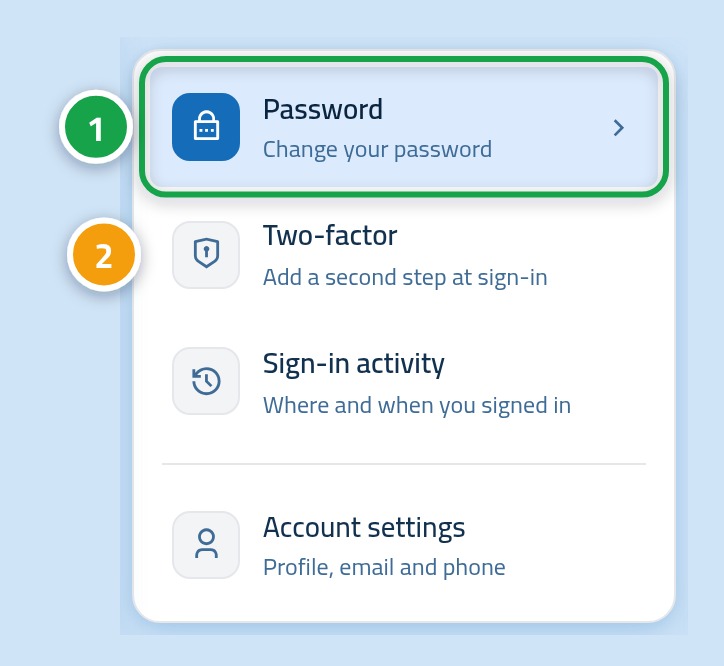
You arrive at the security area. There is a small list at the side: Password is the page now open in front of you, and Two-factor is another page we come back to at the end.
Step five: type the new password and save
Fill the three boxes in order, then press the button at the bottom. You can also open the change-password page directly from here.
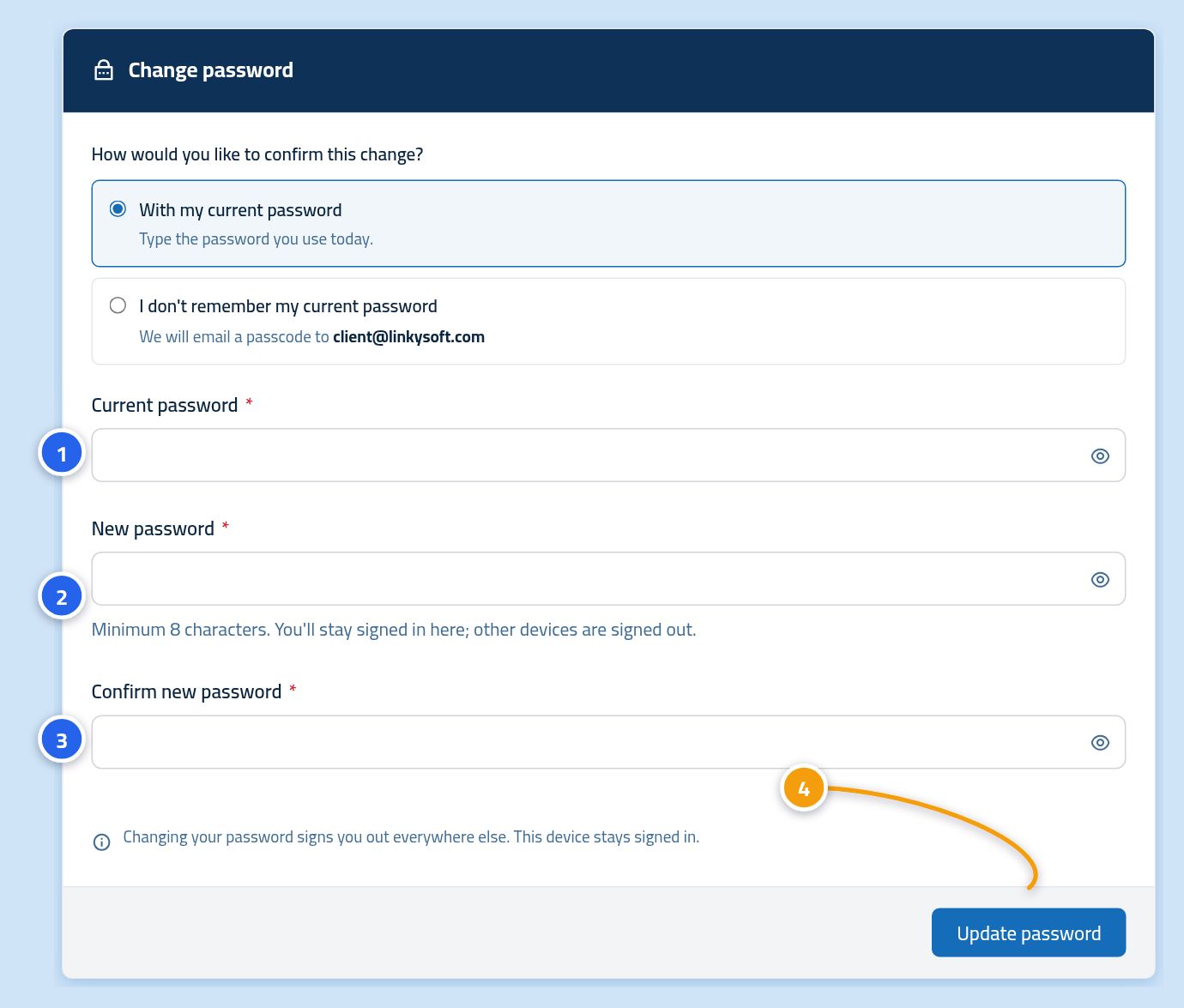
- First box (current password): type the password you use today.
- Second box (new password): at least eight characters.
- Third box (confirm the new password): type it a second time, exactly the same.
- Then press the "Update password" button.
What if you have forgotten your current password?
You do not need to sign out. On the change-password page itself, choose I don't remember my current password and we send a code to your e-mail. Type that code instead of the old password, then carry on with the same steps.
How to choose a strong password
- Make it long. A short sentence you can remember is stronger than one difficult word.
- Do not use the same password on another website.
- Change it immediately if you think someone has seen it.
- Do not write it on paper or in a message. Use a password manager.
Next step: protect your account further
A password on its own can be stolen. Two-factor authentication asks you for one extra code every time you sign in, so nobody can reach your account even if they know your password.