

Every invoice we have issued you sits on one page. From there you can see the amount and the due date, tell at a glance whether it has been paid, and open any invoice to read its details or save a copy.
Step one: open the invoices page
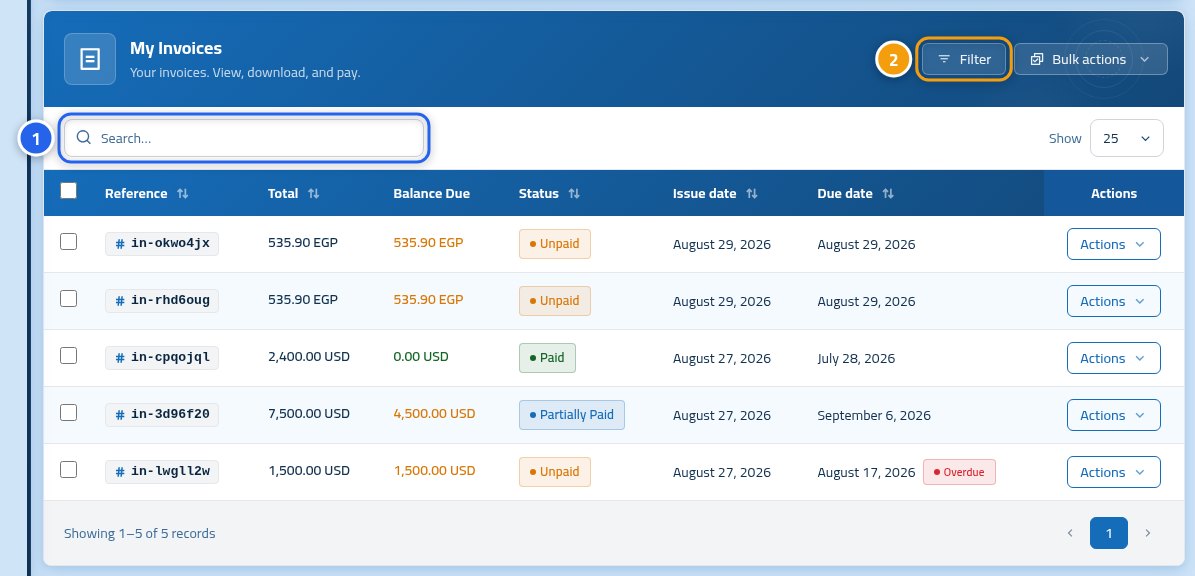
After signing in, click My invoices. You will see a list of all your invoices, newest first. Use the search box (1) if you know the invoice number, or the Filters button (2) to narrow the list.
Step two: filter the list
Click Filters and a small panel opens. Under Status (1) you choose what to see, such as "Paid" or "Unpaid". Unpaid (2) shows only what you still owe, which is the fastest way to see what is due right now.

Step three: open an invoice and read its summary
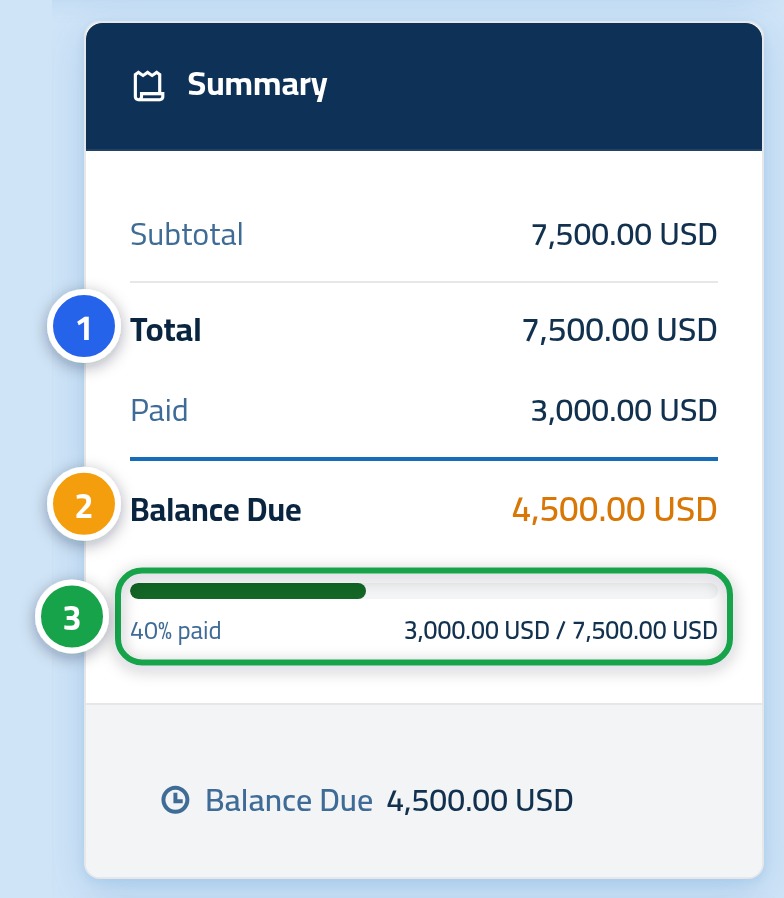
Click the invoice number to open it. On the side you will find the summary card: the total (1) is the full value of the invoice, and the balance (2) is what you still owe today. If you have already paid part of it, a progress bar (3) shows how much has arrived and how much is left.
Step four: save or print the invoice
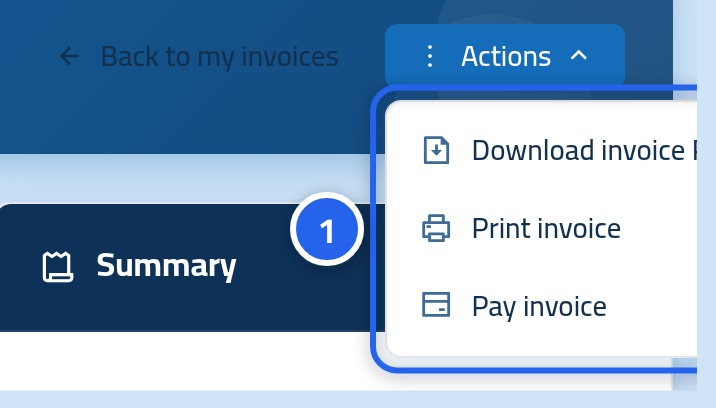
The Actions button at the top of the invoice opens a short menu: Download invoice PDF saves a copy to your device, and Print invoice sends it straight to your printer. If the invoice is unpaid you will also find a shortcut that jumps you down to the payment card.
What does each invoice status mean?
- Unpaid — no payment has reached us yet.
- Partially paid — part of the amount has arrived; the rest is still due.
- Paid — the full amount arrived and nothing is outstanding on this invoice.
- Cancelled — the invoice was cancelled and you are not asked to pay it.
- Refunded — the amount was paid and then returned to you.
A few things that save you time
- All dates are shown in your account's time zone, so there is no time difference to work out.
- You can select several invoices and export them together to Excel or PDF.
- An invoice past its due date is clearly marked in the list.
- If an invoice you expect is not there, clear the filters first, then search by its number.
Next: pay an invoice
You now know the state of every invoice. The next article walks through sending payment for an unpaid one, step by step.