

Want to change the e-mail address on your account? We will walk you through it. It needs a verification code sent to the NEW address, so your account never moves to an inbox you cannot actually open.
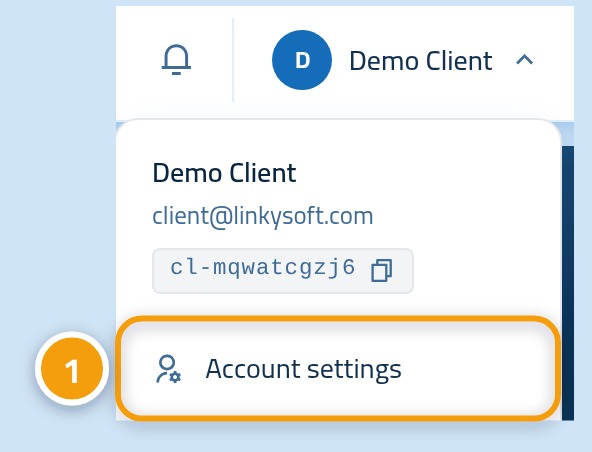
Step one: open your account menu
After signing in to your control panel, click your name at the top of the page and choose Account settings.
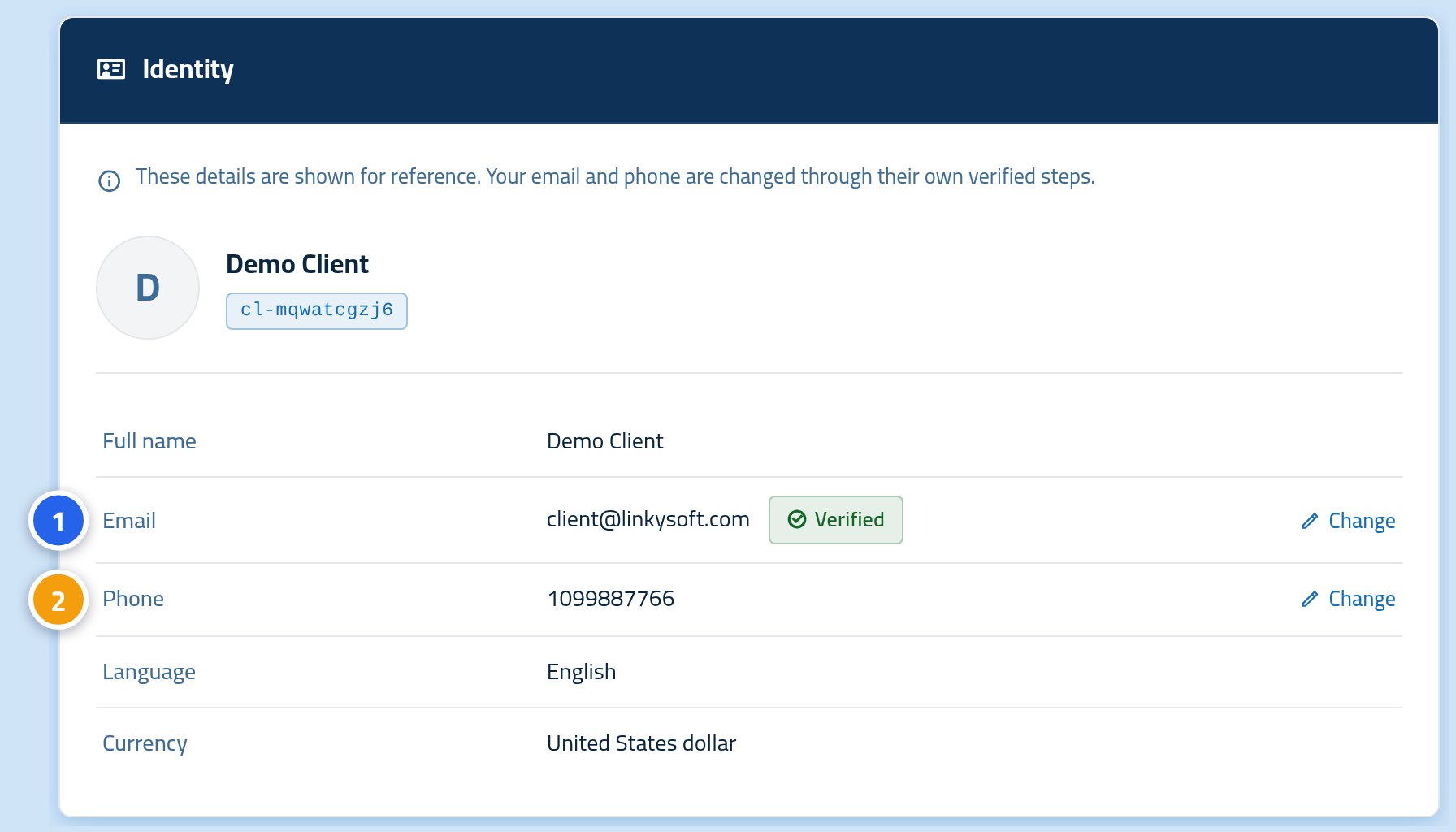
Step two: press "Change" next to your e-mail
A page opens showing your details. It is read-only, but next to the e-mail and the phone number there is a Change link. Press the one next to the e-mail.
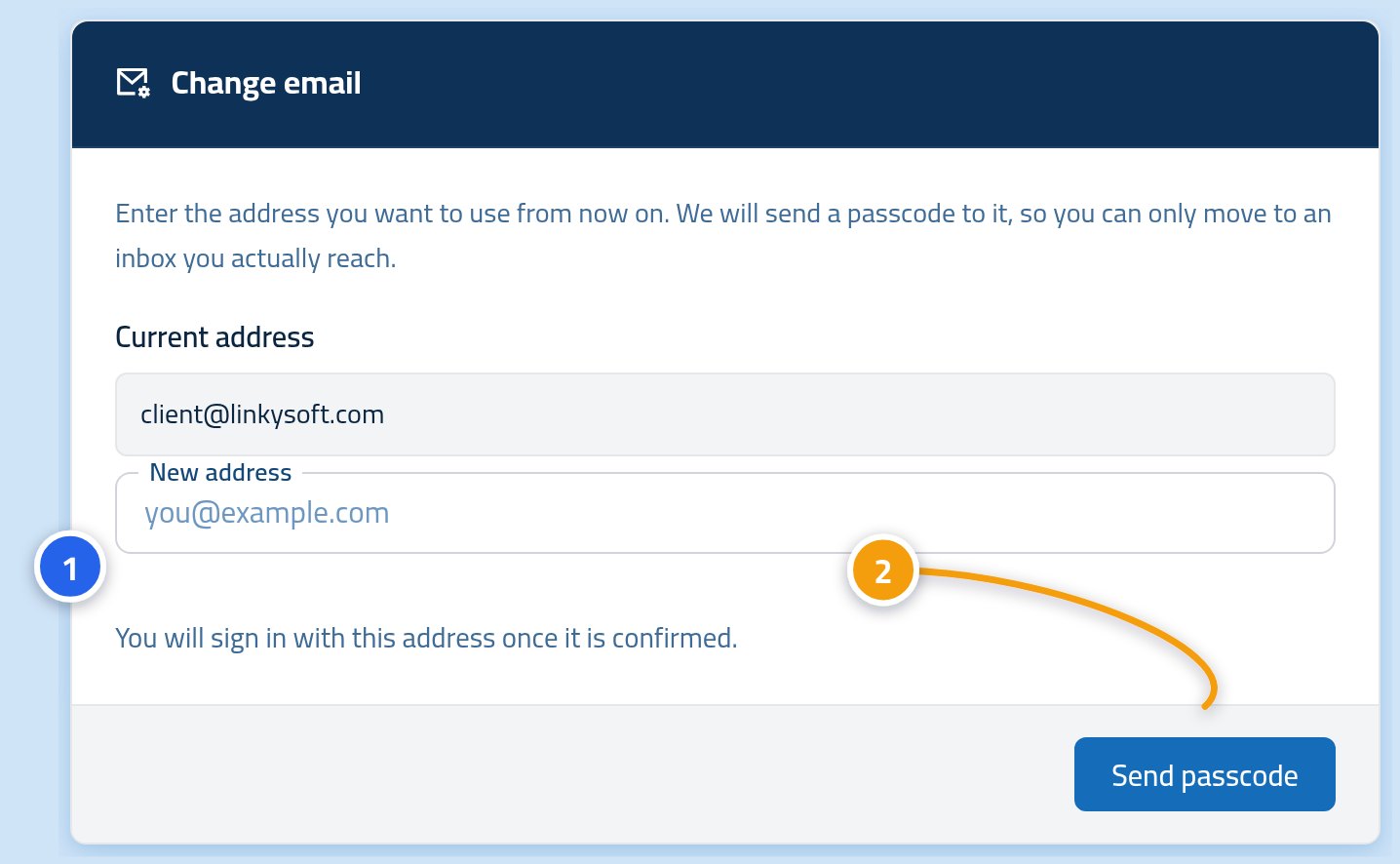
Step three: type the new address
Type your new e-mail in the box, then press Send verification code. You can also open the change e-mail page directly from here.
Step four: type the code you received
Open your new inbox, copy the code, type it into the box and press confirm. As soon as the code is accepted the new address becomes your account e-mail, and you sign in with it next time.
Worth knowing
- The code goes to the NEW address, not the old one. That is what proves the new inbox is really yours.
- Nothing changes on your account until you enter the code. Close the page before that and your old e-mail stays exactly as it was.
- Use an inbox you open yourself — invoices and alerts will be sent there.
- Changed your mind halfway? There is a back button on the same page.
Next step
With your e-mail secured, update your phone number too so text alerts reach the right number.