

Every payment we have confirmed has its own line on the "My payments" page, with a receipt you can download at any time. This page is your financial record with us: what was paid, when, and by which method.
Step one: open the payments page
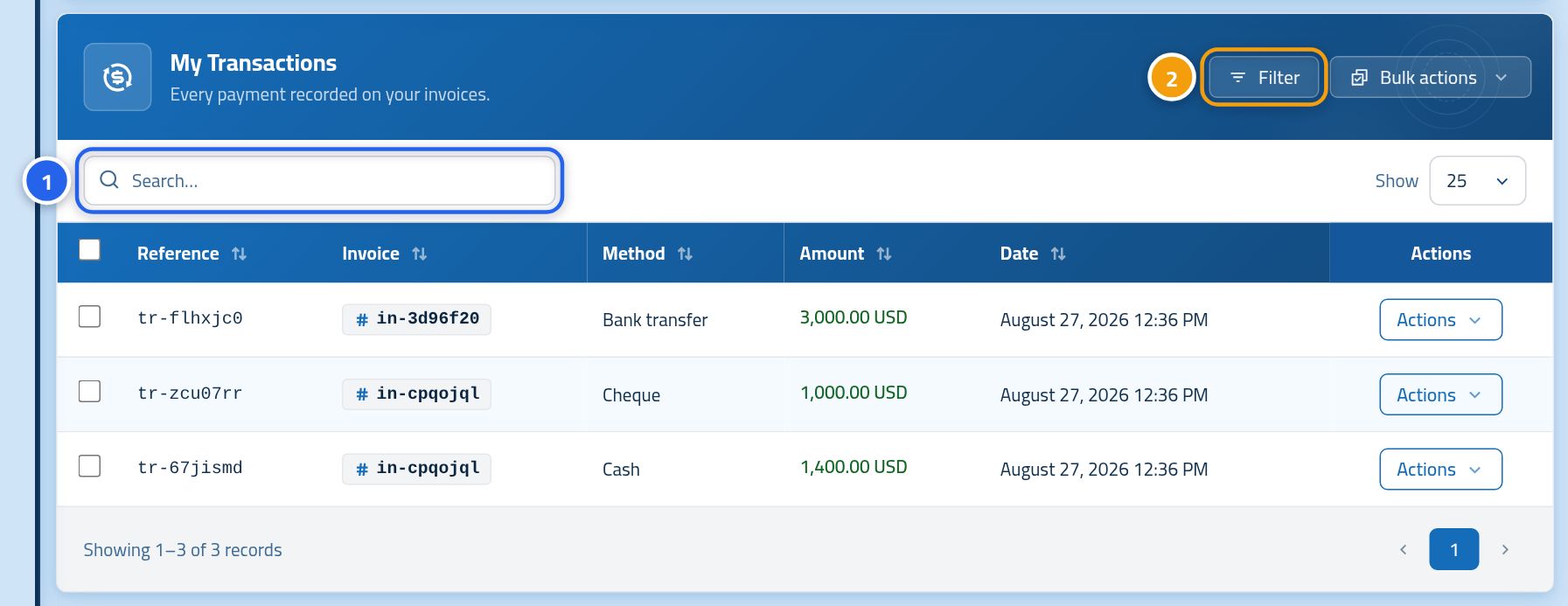
After signing in, click My payments in the side menu. Every confirmed payment is listed, newest first. Use the search box (1) to find a payment by its reference, or the Filters button (2) to show the payments for one invoice or one method.
Step two: download the receipt
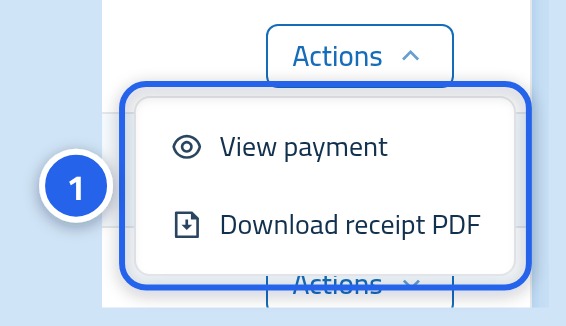
Click the Actions button on a payment row and a short menu opens: View payment opens the payment's details, and Download receipt PDF saves a PDF receipt suitable for your accountant or a tax claim.
What each column means
- Reference — the number of the payment itself. Quote it if you contact support about it.
- Invoice — the invoice this payment was applied to. Click it to open that invoice.
- Method — how the money reached us.
- Amount — what arrived in this one payment, not the invoice total.
- Date — when the payment was confirmed, in your account's time zone.
A few things that save you time
- You can select several payments and export them together to Excel or PDF for your accountant.
- Only confirmed payments appear here. A request still under review is shown inside the invoice itself.
- An invoice paid in instalments has one line per instalment, each with its own receipt.
- If a payment you expect is missing, open the invoice first — its request may still be under review.
Need help with a particular payment?
If you find an amount you do not recognise, or a receipt missing a detail, open a support ticket and quote the reference shown on the row. That number alone is enough for our team to find it.