

Two-factor authentication adds a second step when you sign in: after your password you are asked for a short code. Even if someone learns your password, they cannot get in without that code.
Step one: open the two-factor page
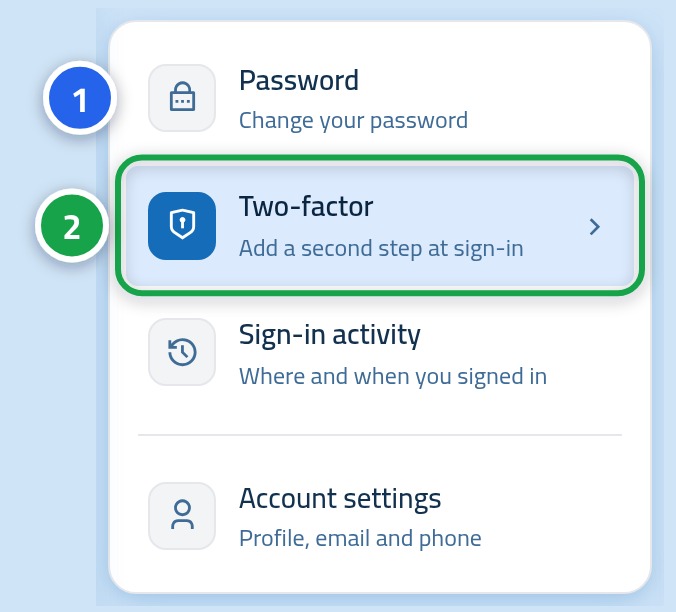
After signing in, click your name at the top and choose Security settings, then pick Two-factor from the side list.
Step two: choose the method
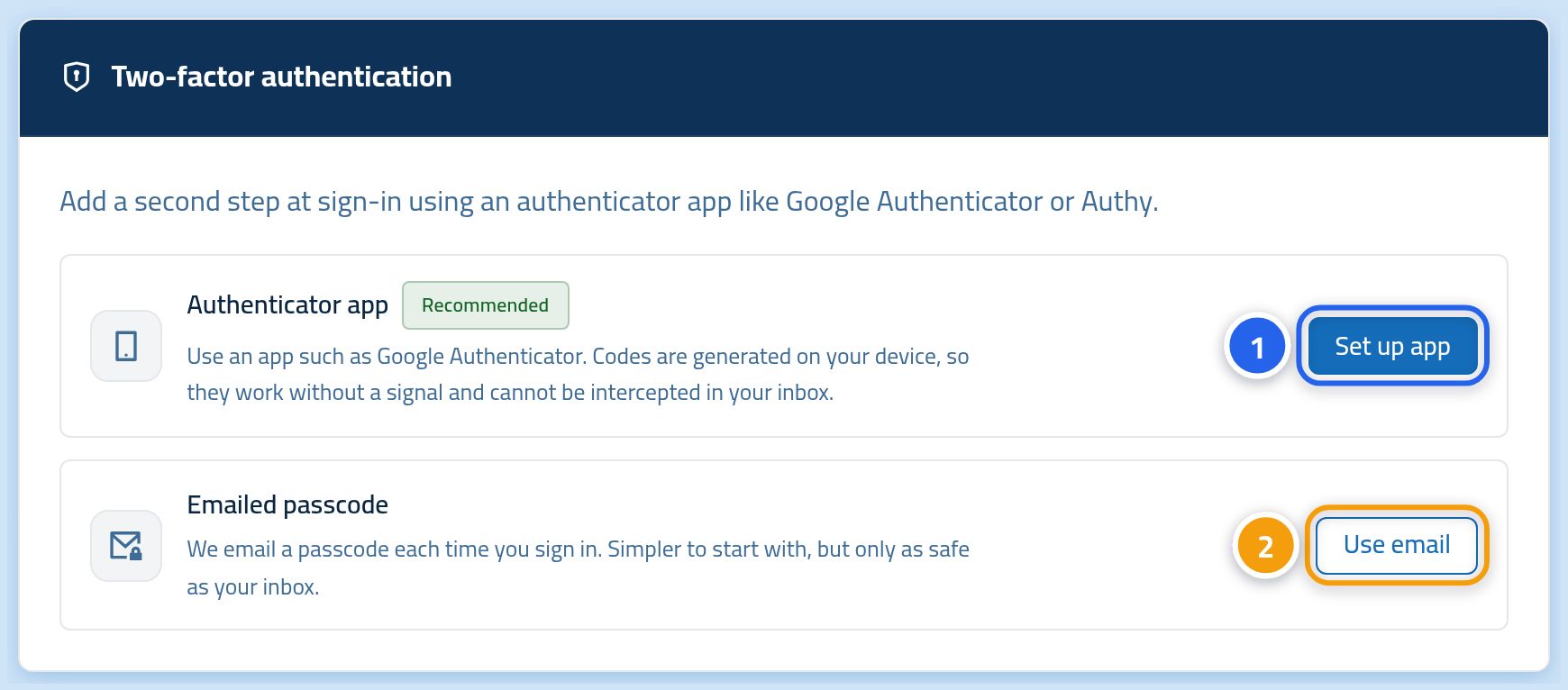
A card shows both methods. Press the enable button next to Authenticator app if you prefer the app, or next to E-mail if you prefer a code in your inbox.
Step three: finish turning it on
If you chose the app, a dialog shows a QR code: scan it with the authenticator app on your phone, then type the six-digit number the app shows. If you chose e-mail, the code arrives in a message and you type it into the same box.
After it is on, what can you do?
- Generate new recovery codes: the recovery codes button on the card. The old ones stop working immediately.
- Turn two-factor off: the disable button on the card. We do not recommend it except for a temporary reason.
- Change method: turn the current one off, then turn the other one on.
- The card always shows which method is active and when it was enabled.
Worth knowing
- An authenticator app beats e-mail, because it works without internet and does not depend on a message arriving.
- The app code changes about every thirty seconds, so type it promptly.
- Each recovery code works once. If you use one, cross it off your list.
- If you lose both your phone and your recovery codes, contact support to get back into your account.
Next step
If you have not changed your password recently, this is a good moment to pick a strong one.