

Did you buy a domain and a web hosting plan, but your address just shows a blank page? Your domain simply doesn't know where your site lives yet. Fixing this takes just a few minutes of DNS management. This guide walks you through every step, from signing in to making sure your website answers at your own address. Just follow these seven steps in order. You don't need any technical skills.
Step one: open the sign-in page
Open the Hostrena sign-in page at https://hostrena.com/console?lang=en in your browser. You will see a box asking for your email and password. This is the front door to all your web hosting and domains.
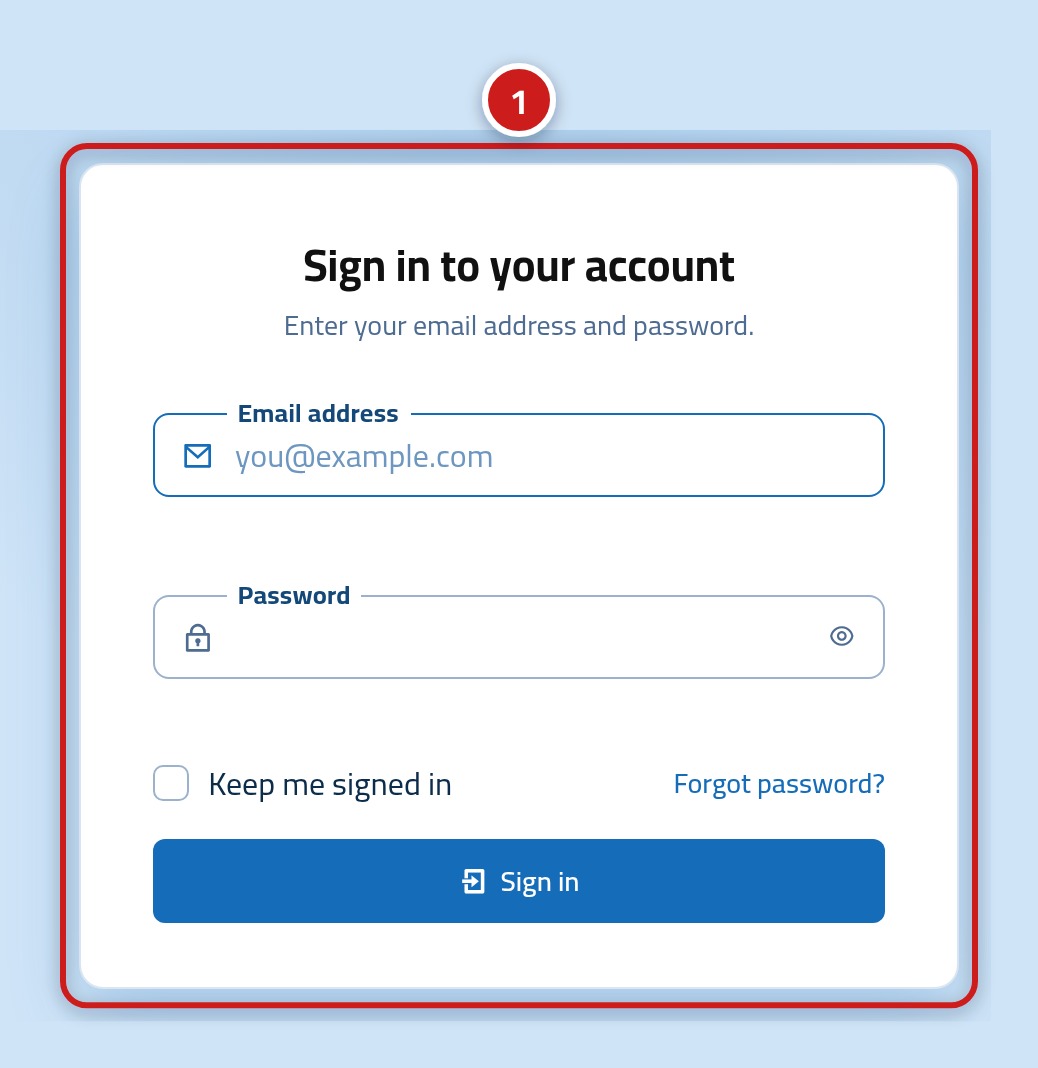
Step two: type your e-mail and password
Type your account email into the first box (1) and your password into the second box (2). If you forgot your password, click the Forgot password link below the form to get a reset message.
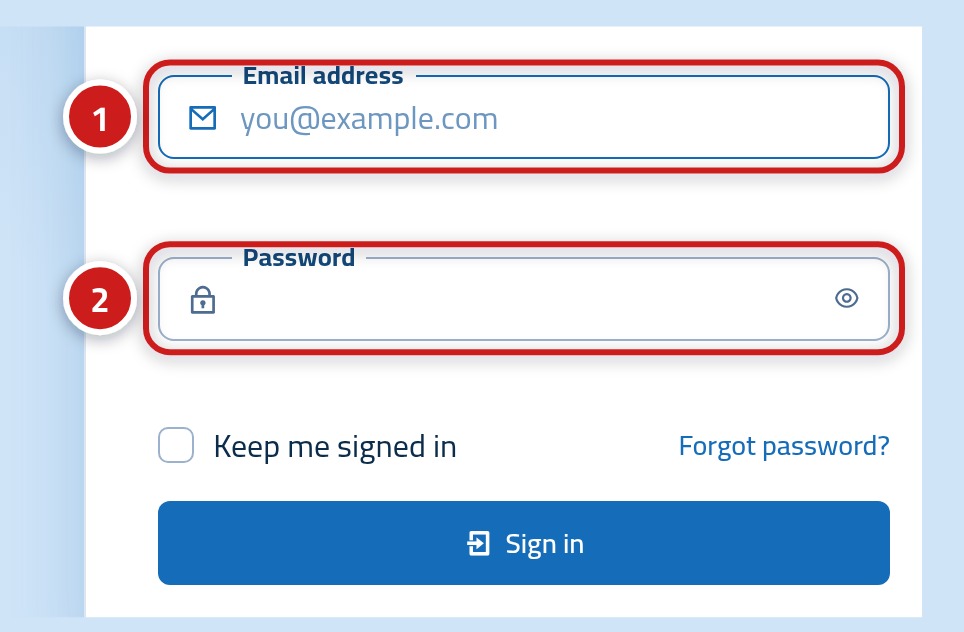
- Email: The address you used when you bought your web hosting
- Password: The password for your client dashboard
Step three: press the Sign in button
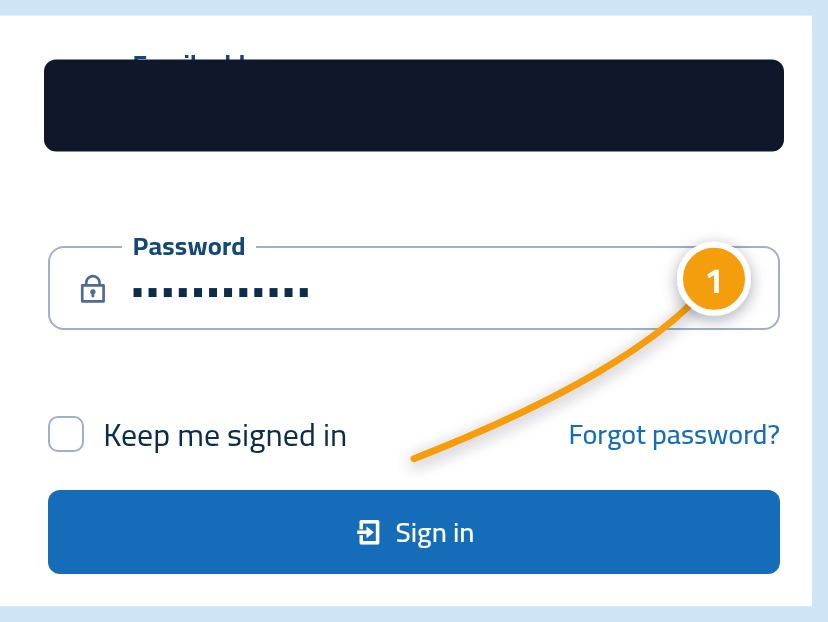
Click the Sign in button (1) below the form. This opens your dashboard, where all your hosting services and domains are listed.
Step four: find your hosting service on the dashboard
On your dashboard, look for your hosting service (1). It shows the plan you bought and the domain linked to it. Make sure this is the site you want your domain to open.

Step five: copy the Hostrena nameservers
In your hosting details, look for the nameservers (1). These are usually two addresses that start with 'ns'. Copy them exactly as they appear. If even one letter is wrong, the domain won't find your site.

Step six: paste the nameservers where your domain is registered
Open the nameserver settings for your domain (1). If you registered it with Hostrena, you can find it in your domain list on this dashboard. If you used another company, sign in to their website instead. Replace the old nameservers with the two you just copied, and save.

Step seven: check that your domain opens your site
Back on your dashboard, your domain (1) now shows that it is linked to your hosting. Wait a few hours, then type your address into a browser. Your website should appear. If you still see the old page, just wait a bit longer and try again.
What if my domain is registered with another company?
You can still use our web hosting and leave your domain where it is. Just sign in to that company's website, open the domain's DNS or nameserver page, and paste the Hostrena nameservers there. If you want to keep everything in one place, you can always do a domain transfer to us at :url.
- Look for a page called Nameservers, DNS, or Domain settings
- Pick the option to use custom nameservers
- Paste both nameservers and save your changes
- Some companies lock domains to prevent changes. If asked, unlock it first
What if the site still doesn't open after two days?
Most delays happen because of a typo in a nameserver, or because the registrar didn't save the change. Double-check both of these. If everything looks correct, our team can check the domain with you at :url.
- Compare each nameserver letter by letter with the ones in your dashboard
- Make sure your registrar shows the new nameservers, not the old ones
- Clear your browser cache or try checking on another device
- Contact our support team with your domain name so we can help