

Have a great name for your website and want to see if it is free? Checking before domain registration takes just a minute on the Hostrena website, and you do not even need an account. This guide takes you from our home page to your answer in six easy steps. Follow them in order to find out if the name is yours to claim or if someone else already has it.
Step one: open the Hostrena website
Go to hostrena.com in your browser. You will see the home page with a top menu and an Order now button (1). You do not need to sign in to check a name.

Step two: find the domain card on the home page
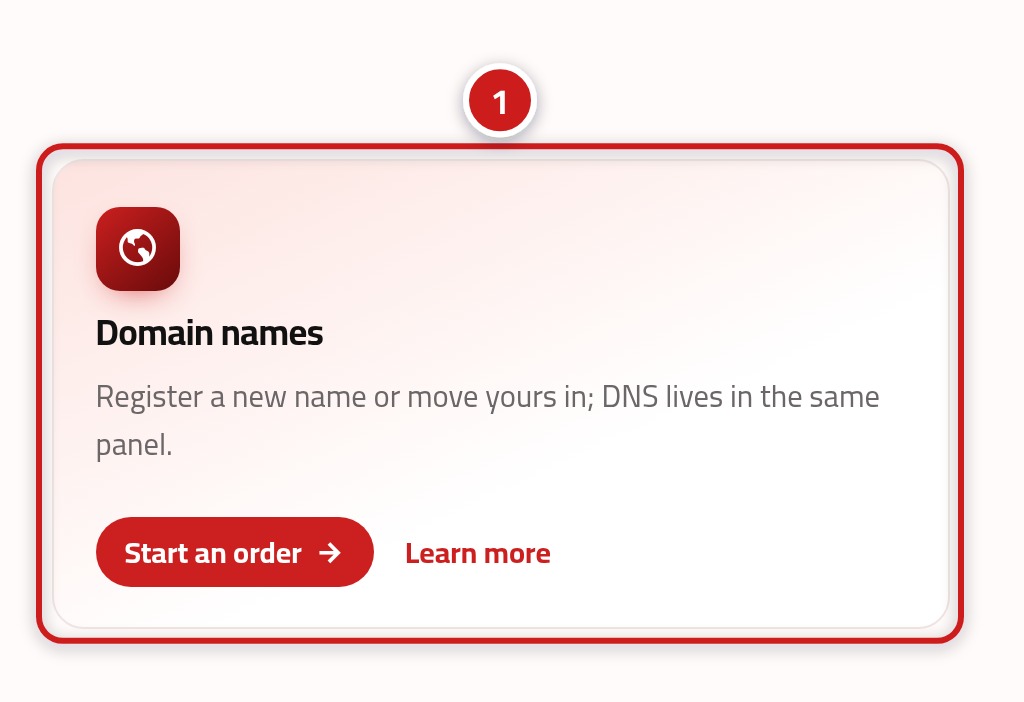
Scroll down the home page to our list of services. Look for the domains card (1). This is where you search for and order names.
Step three: click Start an order in the domain card
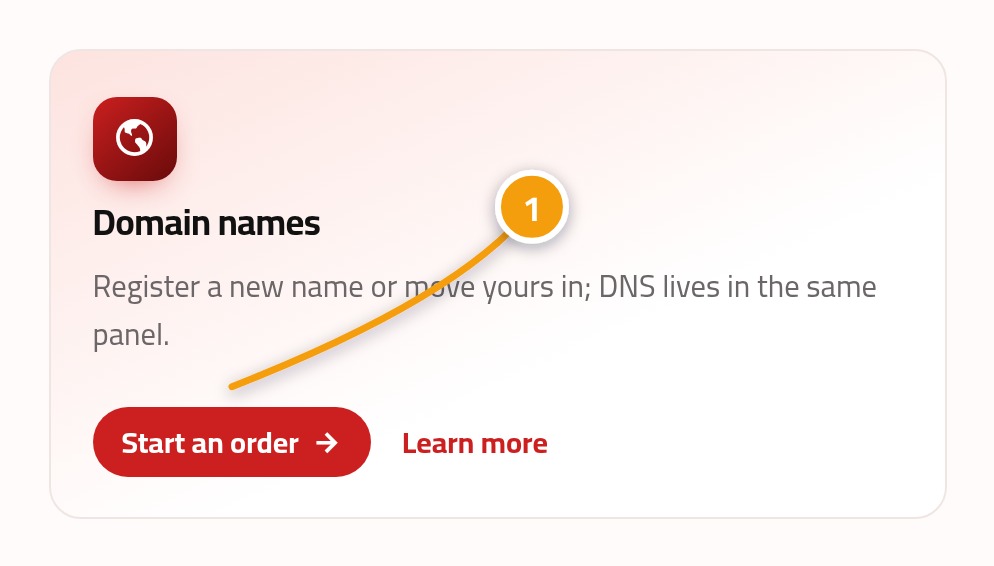
In the domain card, click the Start an order link (1). This opens the domain order form. Do not worry, opening the form does not mean you have to buy anything.
Step four: type the name you want
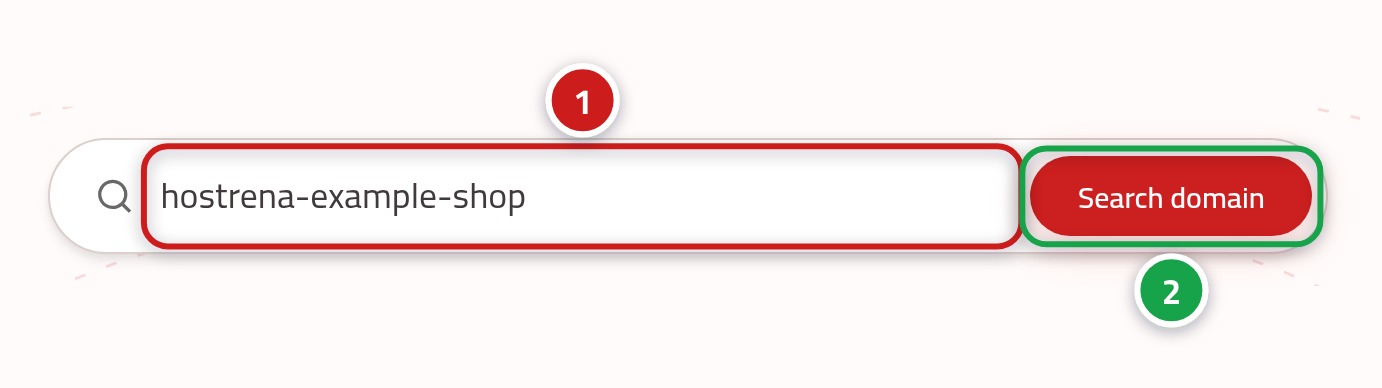
The domain order form shows a box for your name. Type your chosen name into the box (1), with no www and no spaces. If the form asks, pick the ending you want, like .com (2).
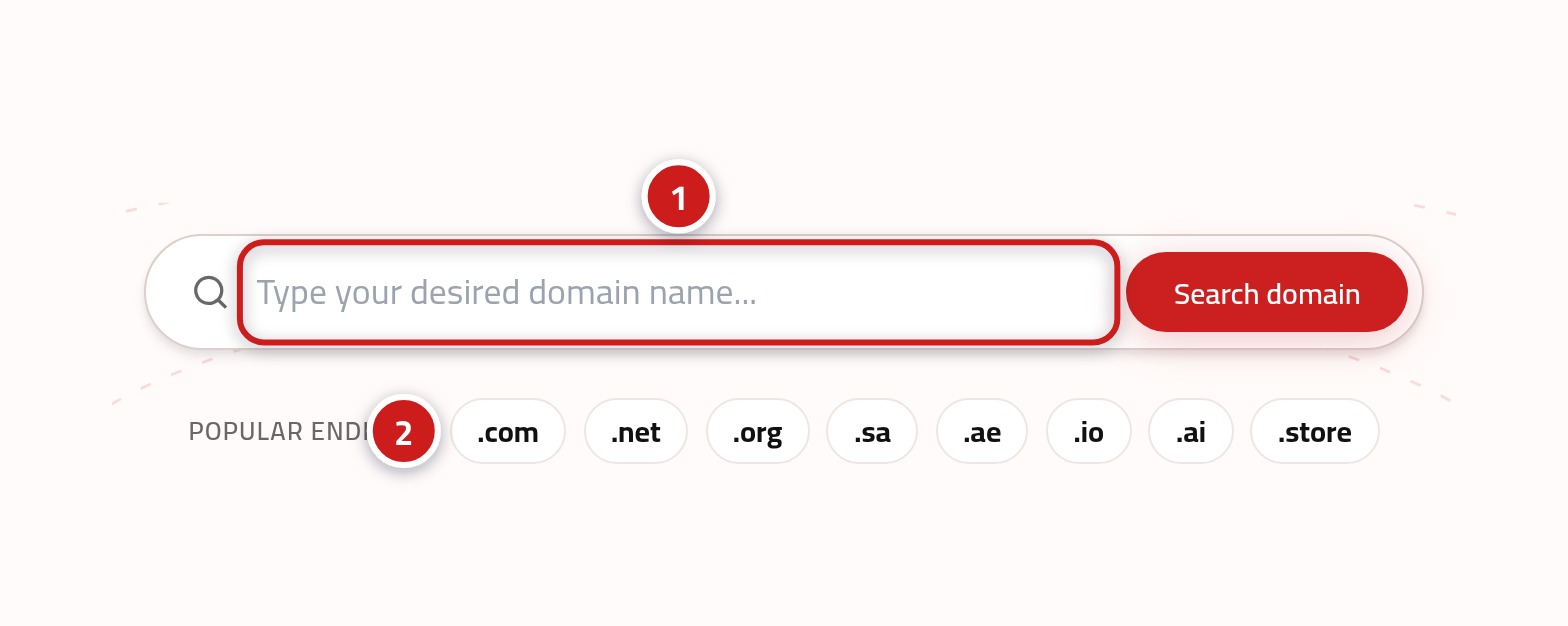
- The name box: the words you want, like yourshop
- The ending: .com, .net or another ending we offer
Step five: press the check button
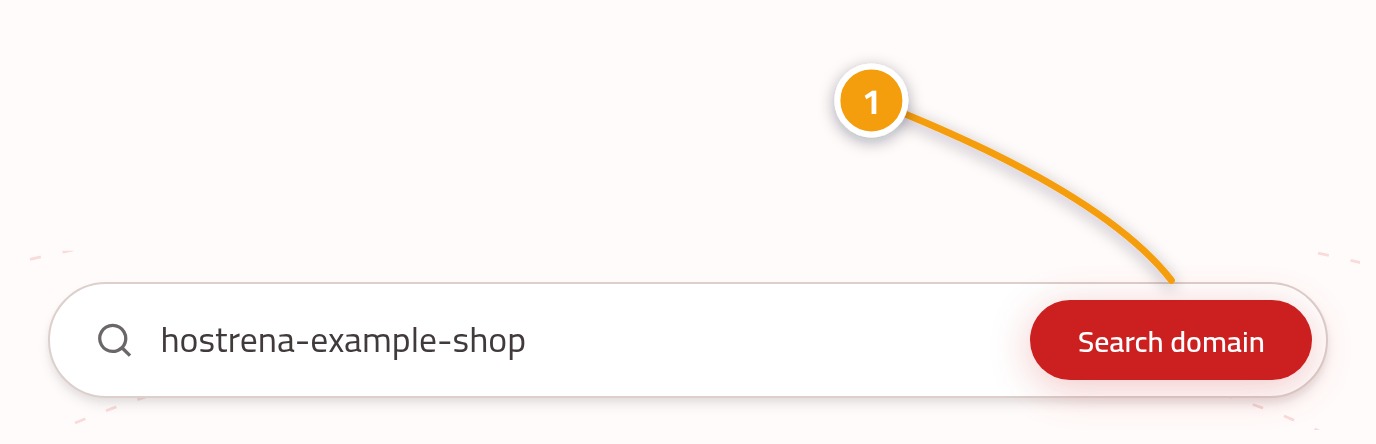
Press the search or check button (1) next to the box. The page checks the registry to see if the name is free. This usually takes just a second or two.
Step six: read the result
A message below the box shows if the name is available (1). If it is free, you get a button to add it to your order (2). If it is taken, you see that right away and can try another version.
What if the name is already taken?
Finding out a name is taken is common, but you have good options. You can see who owns it on the WHOIS page at :url, or try a similar version that is just as catchy.
- Try a different ending, like .net or a country code, if it works for your audience.
- Add a short word that fits your business, such as your city or trade.
- Avoid hyphens and numbers, which people often mishear when you say the name out loud.
- If you already own the name at another company, bring it to us with a domain transfer instead of buying it again.
What to do once the name is yours
A domain by itself shows a blank page, so your next step is to give it a home. Pick a web hosting plan at :url and point your domain to it. Our step-by-step guide explains exactly how to do this.